Dreo Tower Fan Troubleshooting Guide
Is your Dreo tower fan not turning on, blowing weak air, or acting unresponsive? You’re not alone. Many Dreo owners face sudden power loss, strange noises, or unresponsive controls, especially after weeks or months of reliable use. The good news: most issues aren’t permanent failures. With the right steps, you can often fix your Dreo tower fan in under 15 minutes. Whether you own a Tower Fan 508, Cruiser Pro T3, or Pilot Max S, this guide covers every common problem and solution across the Dreo lineup.
We’ll walk you through diagnosing power failures, resetting unresponsive units, clearing airflow blockages, and avoiding safety shutdowns. Let’s get your fan running again.
Confirm Power and Outlet First

Before disassembling or resetting, rule out basic electrical issues. Most dead fans are simply not getting stable power.
Test the Outlet and Cord
Plug a working device like a phone charger or lamp into the same outlet. If it doesn’t power on, the circuit may be tripped or overloaded. Try a different room. Avoid using extension cords or power strips, especially for high-wattage models like the DR-HPF004S heater/fan, which draws up to 1500 watts. These units need direct wall outlet connections to function safely and reliably.
Inspect the entire power cord for cuts, kinks, or fraying. Ensure the plug is fully seated. Even a slightly loose connection can prevent startup.
Check Base Assembly and Connection
For models with detachable bases like the Cruiser TF609 or Tower Fan 307, improper assembly cuts power. Follow this exact sequence:
- Join the two base halves in a crossed position.
- Press until you hear a click to lock them together.
- Route the cord through the center hole.
- Align arrows on the base with marks on the fan body.
- Rotate clockwise until it locks.
- Use cord keepers to secure the wire.
If the base isn’t fully clicked in, the fan won’t power on. Remove and reattach firmly. Listen for the lock.
Fix No Power: Tip-Over Sensor Issues

A silent but common cause of total power failure is the tip-over safety sensor, not a defect but a built-in safety feature.
Why the Fan Won’t Turn On
If your Dreo fan is on thick carpet, a rug, or an uneven floor, the internal sensor detects instability and cuts all power. This prevents tipping hazards. It’s especially common with new units placed directly on plush surfaces.
You’ll see no lights, no sound, no response.
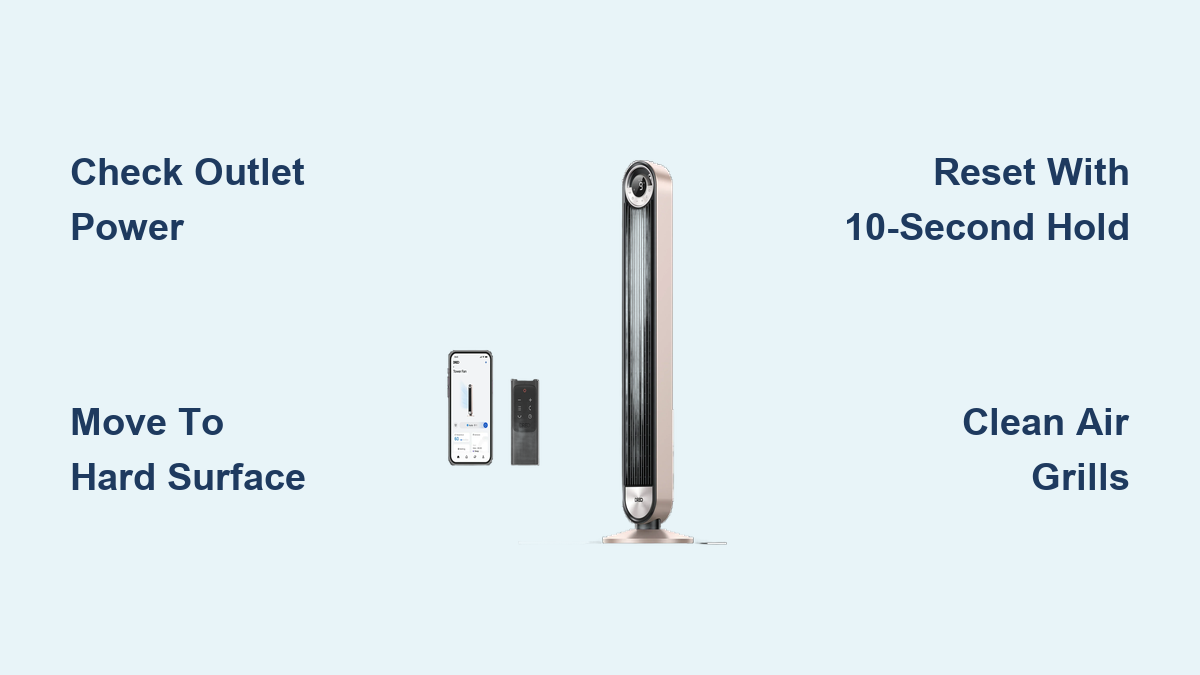
Move to a Hard, Flat Surface
Relocate the fan to tile, hardwood, or a countertop. Try powering it on. If it works there but not on carpet, the sensor is doing its job.
Place a thin, rigid board like a cutting board under the fan on carpet to create a stable base. Never disable the sensor. It’s a critical safety component.
Reset the Fan System
Even if the fan powers on but won’t blow air or respond to buttons, a reset can clear glitches.
Perform a 10-Second Power Reset
Press and hold the power button for 10 seconds. This forces a soft reset, clearing temporary errors in the control board.
This works for unresponsive remotes, stuck modes, and fans that light up but don’t spin. The success rate is high on models like Tower Fan 519, TF413, and Pilot Max S.
For stubborn units, extend to 15 seconds.
Do a Full Power Cycle (Hard Reset)
If the soft reset fails, perform a hard reset:
- Unplug the fan.
- Wait 5 to 7 minutes for capacitors to discharge.
- For older units (6+ months of use), wait 10 to 15 minutes.
- Plug back in and test.
This fixes intermittent faults, phantom sensor triggers, and memory corruption in smart models.
Check Internal Fuse and Reset Buttons
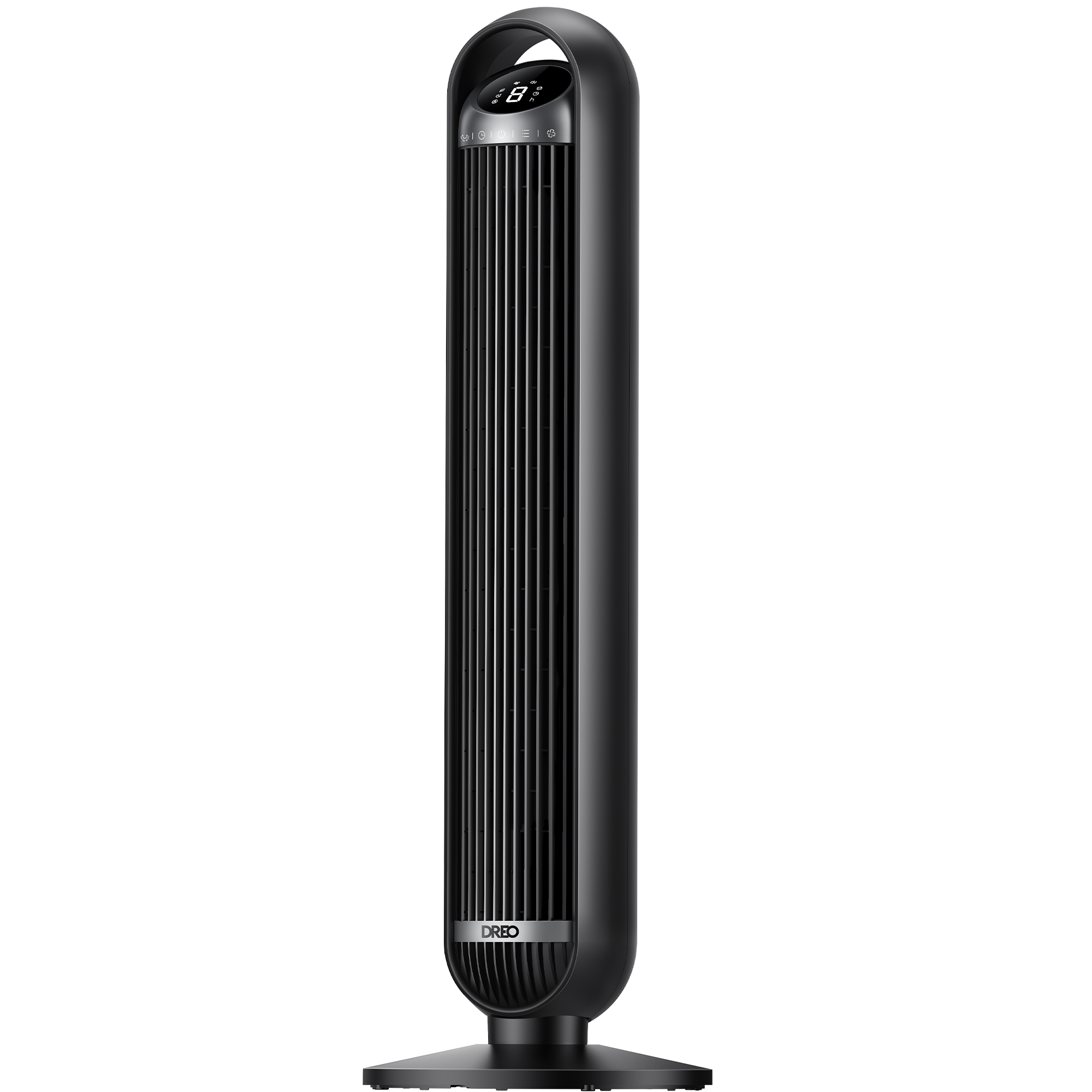
When all else fails, the issue may be internal, most commonly a blown fuse.
Locate and Inspect the Fuse
Unplug the fan. On most Dreo models, the fuse is inside the plug or an accessible panel on the base. Open the fuse cover carefully.
Remove the fuse and inspect for a broken filament or dark discoloration. Use a multimeter in continuity mode to test for a complete circuit.
Replace With Correct 5-Amp Fuse Only
Use only a 5-amp, 125-volt fuse. Never use higher-rated fuses like 10A or 13A. Doing so risks overheating, fire hazard, and permanent motor damage.
Fuses blow due to power surges or factory defects. Replacing with the correct spec restores safe operation.
Press Any Reset Button
Some models, especially heater hybrids like DR-HPF004S, have a dedicated reset button. If visible, press it once after unplugging, then plug back in.
Clear Airflow Blockages and Dust Buildup

Fan powers on but no air? The motor might be running silently, or airflow is restricted.
Inspect Front and Rear Grills
Check both intake (back) and output (front) grills for dust, lint, or obstructions. Use a soft brush or vacuum nozzle to clean. Heavy buildup reduces airflow and strains the motor.
Never insert tools into grills while the fan is powered.
Examine Internal Blades
If disassembly is allowed per your model’s manual, remove the front grill carefully. Look for dust-packed blades, foreign objects like hair or paper, and signs of moisture or corrosion.
Clean gently with a dry microfiber cloth. Reassemble fully before testing.
Ensure Proper Placement
Place the fan on a flat surface with at least 6 inches of clearance behind and in front. Avoid tight corners or enclosed spaces that restrict airflow.
Diagnose Mode and Setting Confusion

Sometimes the fan is working, but not as expected.
Is It in Sleep or Natural Mode
Sleep Mode gradually lowers speed and can become nearly silent, around 25 to 28dB on Tower Fan 508 or Pilot Max S. Natural Mode cycles speeds unpredictably to mimic wind.
Users often mistake these for malfunctions. Check the display or LED indicators. Press the mode button to switch to Normal Mode for consistent airflow.
Verify Auto Mode Behavior
In Auto Mode, the fan adjusts speed based on room temperature. If the room is cool, it may run slowly or pause temporarily. This is normal.
Check Oscillation Settings
Some models like Pilot Max S offer 30, 60, 90, or 120-degree oscillation. If set to 30 degrees, movement is minimal. Press the oscillation button to confirm it’s not stuck or disabled.
Fix Smart Features and App Issues
Smart models like Pilot Max S connect via the DREO app. When app control fails, it’s usually a connectivity problem.
Reconnect Bluetooth or Wi-Fi
- Ensure the fan is within 15 feet of your phone.
- Close and reopen the DREO app.
- Toggle your phone’s Bluetooth or Wi-Fi off and on.
- Restart the fan using a power cycle.
If still unresponsive, forget the device in the app and re-pair.
Use Timer and Remote Correctly
Most models support 1 to 12-hour timers. Confirm the timer isn’t counting down. Some users think the fan turned off, but it’s just on a schedule. Press the timer button to check or cancel.
Replace remote batteries if buttons don’t respond. Clean remote contacts with rubbing alcohol if needed.
Identify Defective Units Early
If your brand-new Dreo fan fails all troubleshooting steps, it may be defective.
Signs of Factory Defects
No power on hard flat surface, correct fuse, good outlet, proper assembly, and no lights or sounds after 15-minute reset indicate internal component failure.
Act Fast: Warranty Claims
Dreo offers warranty support for manufacturing defects. To qualify, keep your original receipt and retain original packaging. Contact the seller or Dreo support immediately.
Do not disassemble the unit. This voids the warranty. Reach out to Dreo Customer Support at 377 Valley Rd, Unit #2686, Clifton, NJ 07013. Provide your model number like TF554S or Tower Fan 714 and proof of purchase.
Prevent Future Issues
Avoid repeat problems with simple maintenance.
Clean Every 2 to 4 Weeks
Dust buildup is the number one cause of reduced performance. Wipe grills weekly. Deep clean blades monthly.
Store Properly Off-Season
Keep in a dry place. Use the original box if possible. Wrap the cord loosely. Never yank or over-tighten the cord.
Use Cord Keepers
Secure the cord with built-in keepers on the base. This prevents strain on the power inlet, which can crack over time.
Avoid Moisture and Humidity
Never use in bathrooms or outdoors unless designed for it like the Outdoor Tower Fan 711S. Moisture triggers safety shutdowns and damages electronics.
Frequently Asked Questions About Dreo Tower Fan Troubleshooting
Why does my Dreo tower fan have no power even when plugged in?
The most common cause is tip-over sensor activation. If your fan is on carpet or uneven flooring, the safety sensor cuts power. Move the fan to a hard, flat surface like tile or hardwood. Also check that the base is fully clicked in and the outlet is working properly.
How do I reset my Dreo tower fan?
Press and hold the power button for 10 seconds for a soft reset. For a hard reset, unplug the fan, wait 5 to 7 minutes, then plug it back in. Extended wait times of 10 to 15 minutes work better for older units.
What fuse does a Dreo tower fan use?
Dreo tower fans use a 5-amp, 125-volt fuse. Never replace with a higher-rated fuse like 10A or 13A. Using the wrong fuse risks overheating, fire, and permanent motor damage.
Why is my Dreo fan running but not blowing air?
Check for airflow blockages. Inspect the front and rear grills for dust buildup. Ensure the fan has at least 6 inches of clearance on all sides. Also verify the fan isn’t in Sleep Mode or Auto Mode with low temperature settings.
How do I connect my Dreo fan to the app?
Ensure the fan is within 15 feet of your phone. Close and reopen the DREO app. Toggle Bluetooth or Wi-Fi off and on, then restart the fan with a power cycle. If problems persist, forget the device in the app and re-pair.
When should I contact Dreo support for a replacement?
Contact Dreo if your fan shows no power after trying all troubleshooting steps, including moving to a hard surface, checking the fuse, and performing resets. You must have your original receipt and packaging. Do not disassemble the unit, as this voids the warranty.
Key Takeaways for Dreo Tower Fan Troubleshooting
Most Dreo tower fan issues stem from simple causes: unstable surfaces, power glitches, or dust. By following these steps starting with the tip-over sensor check, then resetting, checking fuses, and clearing blockages you can restore full function without replacing the unit.
For models like the Tower Fan 519, Pilot Max S, or Cruiser Pro T3, these fixes apply universally. Keep your fan clean, plugged directly into outlets, and on hard floors to prevent 90% of problems.
If all troubleshooting steps fail, contact Dreo with your receipt. You may be covered under warranty for a replacement.