How to Stop a Table Fan from Rotating
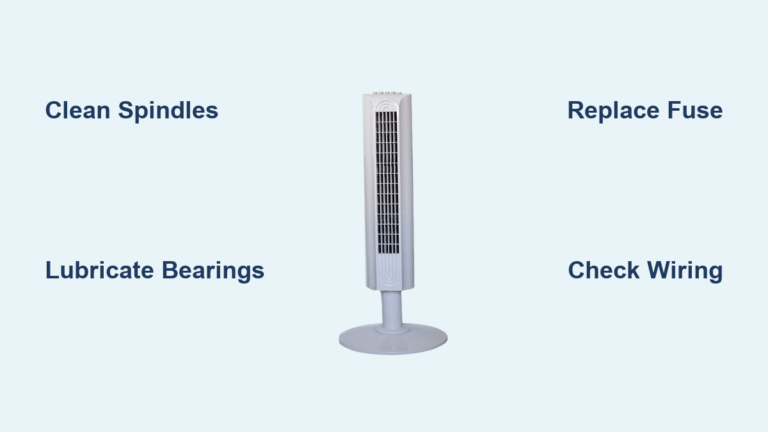
Is your table fan swiveling when you need focused airflow? Many users struggle with how to stop a table fan from rotating, especially when trying to cool a specific work area or reduce the distraction of constant side-to-side movement. The good news: most table fans come with built-in controls designed specifically to lock the head in place. This guide walks you through every method to disable oscillation safely, troubleshoot common issues, and apply long-term fixes when the mechanism fails.
Use the Oscillation Control Knob
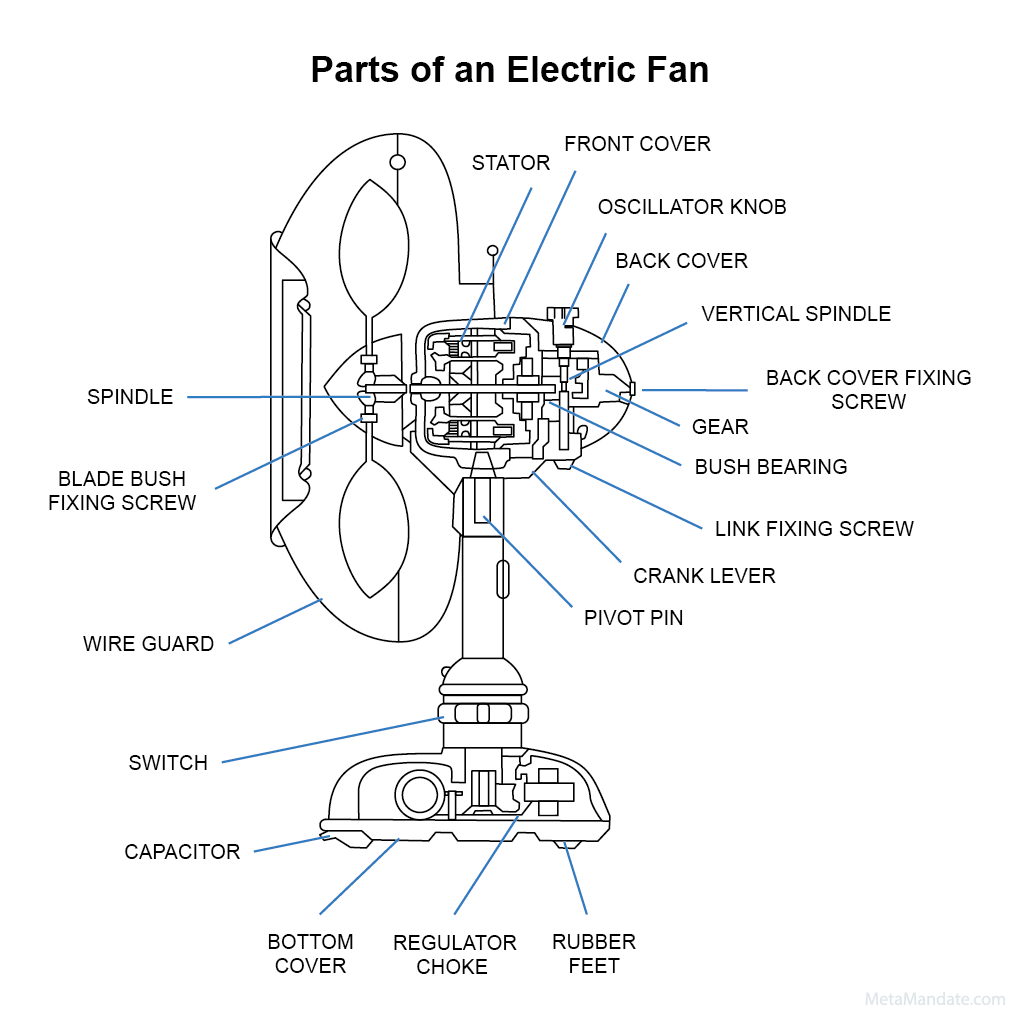
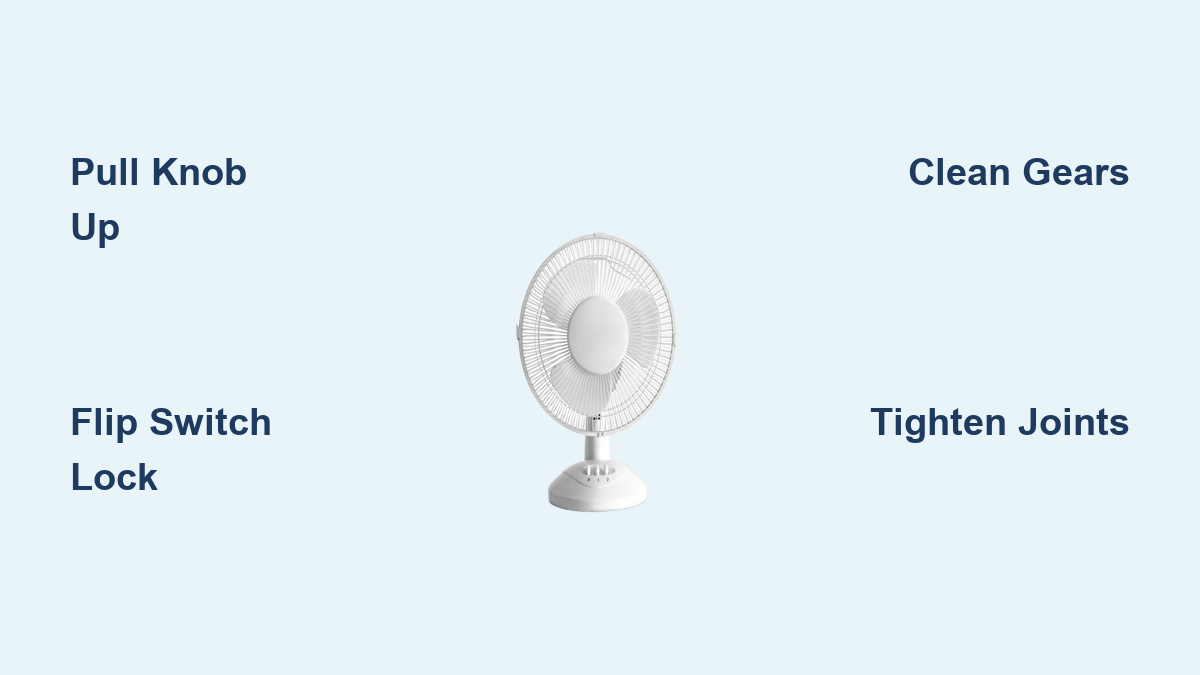
The fastest way to stop a table fan from rotating is by using its built-in oscillation lock. Most standard table fans feature a mechanical knob that physically disengages the swivel mechanism.
Pull the Knob Up to Lock
Locate the small knob on the side or top of the fan head. This is your oscillation control.
To stop rotation, firmly pull the knob upward. You should feel a slight click as the internal gear disengages. Push the knob downward to resume oscillation until it clicks back into place.
Once locked, the fan head remains fixed in position, directing airflow in one direction only.
Verify the Lock Is Engaged
After pulling the knob up, test the fan by turning it on and observing if the head stays still. Gently try to move the head side to side by hand. If properly locked, it should not swivel.
If the head still moves, the knob may not be fully engaged or the internal mechanism could be damaged.
Check for Lever or Switch Controls

Not all fans use a pull-knob. Some models use a lever or sliding switch to control oscillation, particularly industrial or compact desk fans.
Find the Oscillation Switch
Look along the motor housing or base for a small lever or toggle. These are often labeled with icons showing a circular arrow for oscillating mode or a straight line or lock symbol for fixed position. Slide or flip the switch to the lock position to stop rotation.
Align the Fan Head Before Locking
Some models require the fan to be at the center of its swing before the lock engages properly. Turn on oscillation briefly. When the fan reaches the middle, turn it off and engage the lock. Test by powering back on; the head should remain still.
Use Remote Control (If Available)
Higher-end or smart table fan models may include a remote with digital oscillation settings.
Select Fixed Mode via Remote
Press the “Osc” or “Swing” button until the display shows “Off” or “Fixed.” Some remotes have a dedicated “Stop Oscillation” option. The fan immediately ceases side-to-side movement and stays aimed forward.
Note that purely mechanical fans rely solely on the physical knob and have no remote or digital panel.
Fix a Stuck or Broken Oscillation Mechanism
If the fan keeps rotating despite engaging the lock, the internal mechanism may be faulty. Here is how to diagnose and repair it.
Diagnose Common Failure Modes
Fan won’t stop rotating even with knob pulled up indicates internal gear failure or a worn locking pin. No resistance when pulling the knob suggests a disconnected mechanism. Fan oscillates erratically with jerky motion or sudden stops points to damaged gears or debris jam. Unusual grinding noise means gear misalignment or lack of lubrication.
Clean the Internal Mechanism
Dust and grime can prevent the lock from engaging fully.
Unplug the fan and remove the base cover, usually held by four screws. Gently lift the base to expose the gear assembly. Use a dry microfiber cloth or soft brush to remove dust from gears and tracks. For stiff parts, apply a tiny drop of silicone lubricant, never oil or WD-40. Reassemble carefully, ensuring the alignment pin clicks into place.
Never use water or liquid cleaners near the motor or electrical components.
Replace Worn Parts
If cleaning does not help, inspect the oscillation gear and locking pin for cracks or wear. Order replacement parts using the model number on the label. Replace the entire oscillation motor if defective.
If parts are unavailable, consider upgrading to a non-oscillating industrial fan designed for fixed airflow.
Tighten Loose Joints and Fasteners

Even with oscillation off, a wobbly or shifting fan can seem like it is rotating. This is often due to loose mechanical joints.
Secure the Pivot Point
Check where the fan head connects to the stand. Look for visible screws or bolts. Use a screwdriver or Allen key to tighten firmly, but do not over-tighten and crack plastic. A loose pivot allows unintended movement, especially under vibration.
Apply Thread Locker
If screws loosen repeatedly, remove them and apply a small amount of Loctite blue formula to the threads. Reinstall and tighten. This prevents vibration from undoing fasteners over time.
Stabilize the Fan Base

A shaky base can cause the whole unit to shift, mimicking rotation. Prevent movement with these simple fixes.
Add Non-Slip Pads
Attach rubber feet or adhesive pads to the bottom of the base. This increases grip on smooth surfaces, reduces vibration noise, and prevents accidental sliding. Available at hardware stores or online.
Weight the Base Down
For tall or top-heavy fans, place a sandbag, brick, or weighted base kit on the stand. This lowers the center of gravity and resists tipping. Ideal for workshops or homes with pets and children.
Mount the Fan Permanently
For permanent fixed airflow, use a wall mount, desk clamp, or fixed bracket. This removes the base entirely and locks the direction. Common in garages, server rooms, or production areas.
Stop the Fan Safely in Emergencies

Never reach into a spinning fan. If the blades will not stop and pose a hazard, use these last-resort methods.
Let It Spin Down Naturally
The safest method is to turn off the power switch or unplug the fan. Stand back and wait 10 to 30 seconds for blades to stop completely. Do not touch until fully still. This avoids injury and blade damage.
Use a Long Non-Metallic Object
Only if immediate stop is required, use a wooden broom handle, plastic rod, or thick ruler. With power off, gently insert it through the front grille to block a blade. Let momentum stop against the object, do not force it. This removes risk of hand injury and prevents metal contact with live parts.
Apply Center Pressure (Small Fans Only)
Only for small desk fans with plastic blades, unplug the fan first. As blades slow, press a finger gently against the central hub. This adds friction to stop rotation faster.
Never attempt this on large or metal-bladed fans. Risk of cuts or motor burnout is too high.
Prevent Future Rotation Issues
Keep your fan functioning properly with regular maintenance and smart placement.
Clean Every Two to Three Months
Build-up jams gears and prevents locking. Unplug and disassemble the base. Brush dust from gears, joints, and housing. Reassemble with alignment pin seated. More frequent cleaning is needed in dusty or humid environments.
Inspect for Corrosion in Humid Areas
In tropical climates, metal screws and joints can corrode. Check monthly for stiffness or rust. Replace corroded parts and use stainless steel fasteners if possible.
Store Properly When Not in Use
Keep in a dry, covered space. Cover with a cloth to reduce dust intake. Avoid stacking items on the fan, which can bend grilles or misalign parts.
When to Replace the Fan
Some issues are not worth repairing. Replace your fan if it is under warranty and oscillation fails out of the box. Return for replacement if internal gears are shattered or unavailable and repair cost exceeds a new unit. Replace if the motor hums but blades do not turn. Replace if excessive noise or wobble persists after tightening and cleaning.
Upgrade to a non-oscillating model if you never use swiveling. Many industrial fans are built for fixed, high-velocity airflow.
Key Takeaways for Stopping Table Fan Rotation
Stopping a table fan from rotating is usually as simple as pulling up the knob or flipping a switch. When that fails, check for loose joints, clean the gears, or stabilize the base. Never force a stop while blades are spinning. Regular cleaning every two to three months prevents dust buildup that jams the oscillation mechanism. If the internal lock is broken, consider replacing with a non-oscillating industrial fan rather than attempting costly repairs. With proper care, your fan can deliver targeted, quiet airflow for years, exactly where you need it.
Frequently Asked Questions About Stopping Table Fan Rotation
Why does my table fan keep rotating even after I pull the knob up?
If the pull-knob is engaged but the fan continues to swivel, the internal locking mechanism has likely failed. This could be due to worn gears, a broken locking pin, or debris jamming the mechanism. Try cleaning the internal gears first. If the problem persists, the oscillation motor or gear assembly needs replacement.
Can I use WD-40 to lubricate a stuck oscillation mechanism?
No. WD-40 is not recommended for fan mechanisms because it can attract dust and residue, making the problem worse. Use a tiny amount of silicone lubricant specifically designed for plastic and metal components. Apply sparingly to the gear mechanism after cleaning.
How do I stop a table fan from wobbling instead of rotating?
A wobbly fan often has loose pivot joints or an uneven base. Tighten the screws at the pivot point where the head connects to the stand. Add non-slip pads to the base or weight it down with a sandbag. Check that the fan is on a flat, stable surface.
Is it safe to manually stop a spinning fan with my hand?
No. Never insert your hand into a spinning fan blade. The blades move at high speed and can cause serious cuts. Use the power switch to turn off the fan and wait for blades to stop naturally, or use a long non-metallic object with the power off to block the blades if absolutely necessary.
How often should I clean my table fan to prevent rotation issues?
Clean your table fan every two to three months. Increase cleaning frequency in dusty environments, near construction areas, or in humid climates where moisture can cause corrosion. Regular cleaning prevents debris buildup that can jam the oscillation lock.