
How to Use Dyson Tower Fan Without Remote
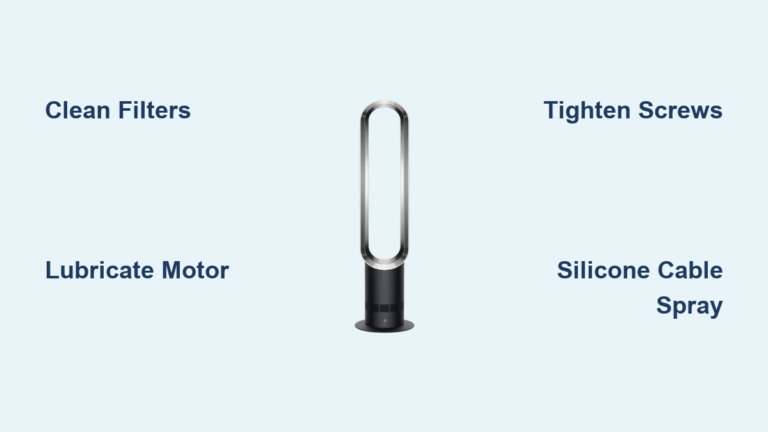
You are not alone if you have lost your Dyson tower fan remote or it has stopped working. Many users assume the sleek machine becomes nearly useless without that tiny plastic controller, but that is not entirely true. Yes, you can still operate a Dyson tower fan without the remote, though with some limitations. The good news is that basic power and speed or temperature control remain accessible right on the unit itself.
For models like the Dyson Cool (AM07, TP04), Hot+Cool (HP02, HP04), and Purifier series, Dyson built in essential physical controls for emergency or manual use. These allow you to turn the fan on, adjust airflow or heat settings, and even switch between modes. You will not get all the smart features, but you will not be left completely without control. This guide shows you exactly how to use your Dyson tower fan without a remote, what you can do, what you cannot do, and how to regain full control using the Dyson app.
Use the Standby Button Manually
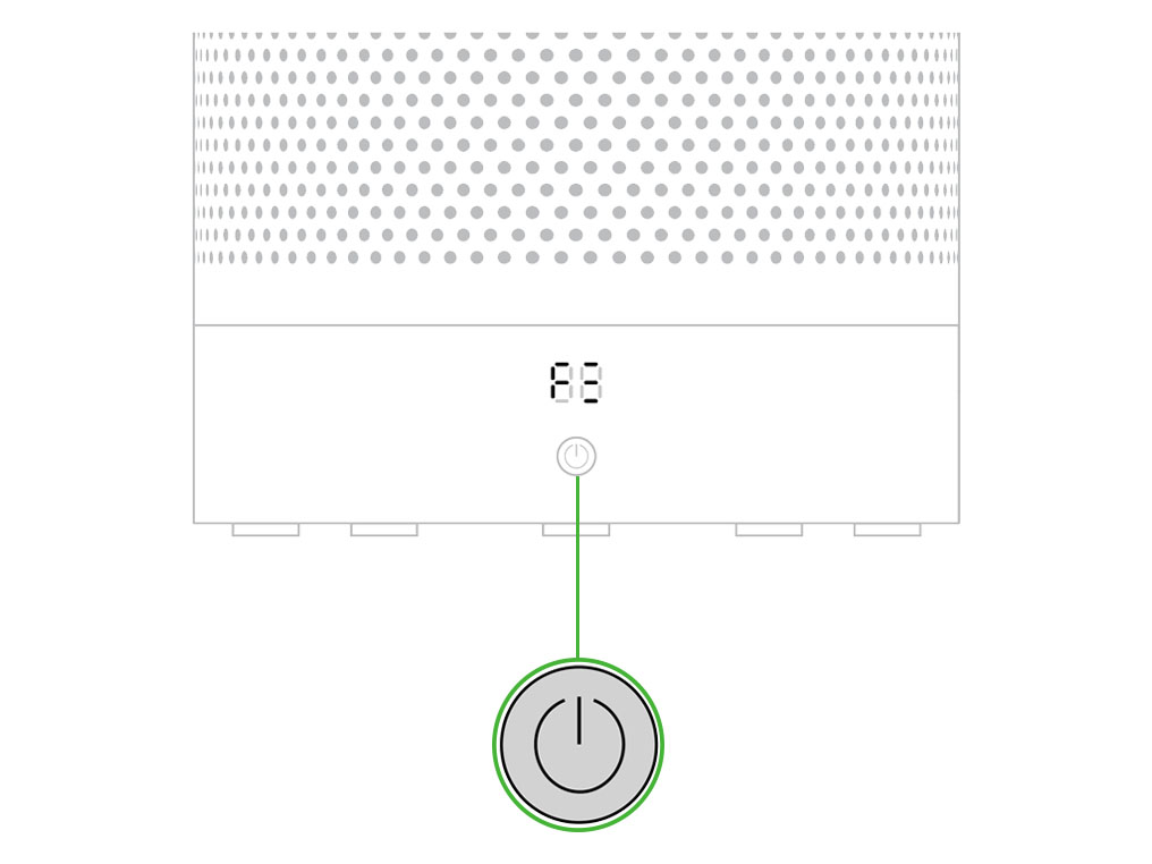
Every Dyson tower fan has a physical Standby or Power button located on the top or side of the base. This button is your lifeline when the remote is missing. It controls power and enables basic function adjustments through press and hold actions.
Power On and Off
A single press turns the fan on or off. When powered on, the unit resumes the last used setting, whether that is fan speed, heating temperature, or cooling mode. No need to reset preferences each time. The display, if present, lights up to show current status such as speed level or room temperature.
Adjust Fan Speed on Cooling Models
On Dyson Cool models (AM07, TP04, and similar), press and hold the standby button to cycle through fan speeds.
• The display shows levels 1 to 10.
• The fan starts at level 1, increases to 10, then cycles back down.
• Release the button when your desired speed appears.
• To reset to the lowest speed, keep holding until it returns to level 1, then release.
This method only adjusts airflow. Oscillation, timer, and Night Mode remain locked without remote or app.
Set Temperature on Hot+Cool Models
For HP02, HP04, or other Hot+Cool units, the same button adjusts heating temperature manually.
• Press and hold the standby button.
• The target temperature increases from 1 to 37°C, then decreases.
• Release when your preferred heat level displays.
• If you lower the setting to 0°C, the unit automatically switches to Cool mode.
Some models may require repeated single presses to toggle between Heat and Cool modes, with the current mode shown on screen.
Connect via Dyson Link App
If your model supports Wi-Fi, like the HP02, HP04, TP04, or newer Purifier fans, the Dyson Link App becomes your full function remote replacement. Once connected, you regain access to all features lost when using only the physical button.
Pair the Fan Without Remote
You can set up the app without the physical remote. Here is how:
- Press and hold the standby button on the fan for 5 seconds.
- The indicator light begins flashing, signaling pairing mode.
- Open the Dyson Link App on iOS or Android.
- Follow the on screen prompts to connect the device to your WiFi.
After a power outage, reconnection takes just 3 to 4 minutes if you are logged into your Dyson account.
Use the Virtual Remote
The app includes a Virtual Remote interface that mirrors the physical remote exactly. From here, you can:
• Turn the fan on or off.
• Adjust speed or temperature in 1 degree increments.
• Toggle oscillation on off and set swing angles.
• Activate Night Mode, Auto Mode, and timers.
• View real time air quality data including PM2.5 and VOCs.
• Set schedules and automations.
With the app, losing the remote is no longer a limitation. It is just an inconvenience.
Bypass Remote for Core Functions
Even without the app, you can manage essential operations using only the physical button. This section outlines what is possible and how to execute it efficiently.
Switch Between Heat and Cool
On Hot+Cool models, you do not need the remote to change modes. Two methods work:
• Hold the standby button and cycle the temperature down to 0°C. This forces a switch to Cool mode.
• Repeatedly press the standby button on some models to toggle between HEAT and COOL displays.
Once in Cool mode, holding the button cycles fan speeds as usual.
Restart After Power Loss
After a blackout, the fan remembers your last settings but powers off. Simply press the standby button once to turn it back on. It resumes at the previous speed or temperature. Adjust as needed using the hold to cycle method. No re pairing or reset is required unless the app connection drops.
Limitations Without Remote or App
While basic operation is possible, critical smart features remain inaccessible without either the remote or the Dyson Link app. Relying solely on the physical button means sacrificing automation, convenience, and directional control.
No Oscillation Control
You cannot enable or disable oscillation using the button. The fan blows in a fixed direction only. This limits air circulation, especially in larger rooms. Manually rotating the entire unit is a workaround, but it is imprecise and risky on hard floors.
No Timer or Sleep Settings
There is no way to set a sleep timer or automatic shutoff. The fan runs until you turn it off manually. This can waste energy and disrupt sleep if left on overnight.
No Access to Smart Modes
Features like Auto Mode, Night Mode, Diffused Flow, and Personal Heating modes are completely unavailable without remote or app input. These represent significant functionality losses for users who rely on automated features.
Air Quality Data Is Limited
On purifier models, the screen shows basic air quality status such as color coded rings. But without the app, you cannot view historical trends, see exact PM2.5 or VOC levels, receive air quality alerts, or enable Auto Mode based on pollution spikes.
Model Specific Manual Controls

Control logic varies slightly across Dyson lines. Knowing your model helps you use the button correctly.
Dyson Cool (AM07, TP04)
• Function: Fan speed only (Levels 1 to 10).
• Button Action: Hold to cycle speed.
• Display: Shows numeric speed level.
• Limitation: No temperature control, no oscillation without remote.
Dyson Hot+Cool (HP02, HP04)
• Function: Temperature control and mode switching.
• Button Action: Hold to adjust temp, cycle to 0°C to switch to Cool.
• Display: Shows °C or COOL/HEAT.
• Limitation: Cannot select Diffused or Personal heating modes manually.
Dyson Purifier Models (TP04, HP06, etc.)
• Function: Speed and temp adjustment via hold.
• Button Action: Same as Hot+Cool.
• Display: Shows air quality, speed, temp.
• Note: Newer models may have an Auto button, but full sensor based automation requires the app.
Replace or Repair the Remote

If manual control is not enough, restoring full functionality means replacing or fixing the remote.
Check Remote Battery
Most Dyson remotes use a CR2032 3V lithium coin cell.
- Open the battery compartment on the back.
- Replace if corroded or dead.
- Clean contacts with a dry cloth.
Even if the battery looks fine, replace it. Old batteries lose charge quickly.
Pair a New Remote
Replacement remotes must be paired.
- Insert a fresh CR2032 battery.
- Point the remote at the fan base.
- Hold the Power and Cool buttons together for 5 seconds. Exact combo varies by model.
- Wait for the fan to beep or flash, indicating pairing success.
Always verify compatibility using your model number, found on the label at the base.
Maintain Full Functionality
To avoid future remote issues and maximize your Dyson investment, follow these best practices.
Prevent Remote Loss
• Use a remote holder or attach a small hook near the fan.
• Keep a spare remote on hand. Order from Dyson support.
• Rely on the app as your primary control method. Install it even if you have the remote.
Clean Sensors Regularly
The infrared sensor on the fan base and remote must be clean. Dust or smudges block signals. Wipe the sensor (small dark window on base) weekly with a dry microfiber cloth. Avoid sprays or liquids near the unit.
Update Firmware via App
The Dyson Link App delivers firmware updates that improve performance and fix bugs.
• Keep the app installed and updated.
• Allow automatic updates when prompted.
• Reboot the fan after updates for best results.
Summary: What You Can and Cannot Do
Here is a quick reference matrix for operating your Dyson tower fan without the remote:
| Feature | Available Without Remote | Method |
|---|---|---|
| Power On/Off | Yes | Single press of standby button |
| Fan Speed Adjustment | Yes | Hold button to cycle (Cool models) |
| Temperature Control | Yes | Hold button to adjust (Heat models) |
| Switch Heat/Cool Mode | Yes | Set temp to 0°C or cycle button |
| Oscillation | No | Requires remote or app |
| Sleep Timer | No | App or remote only |
| Night Mode | No | Not accessible manually |
| Auto Mode | No | Needs app or remote |
| Air Quality History | No | App required for full data |
| Remote Replacement | Yes | Use CR2032 battery and model matched remote |
Frequently Asked Questions About Using Dyson Tower Fans Without Remote
Can I use my Dyson tower fan if I lost the remote?
Yes, you can use basic functions through the physical Standby button on the unit. You can turn the fan on and off, adjust fan speed on cooling models, and adjust temperature on heating models. However, you cannot access oscillation, timers, Night Mode, or Auto Mode without the remote or Dyson Link app.
How do I turn on my Dyson fan without the remote?
Press the physical Standby or Power button on the base of the unit once. The fan will turn on and resume the last used settings. Press again to turn off.
What does holding the power button do on a Dyson tower fan?
Holding the power button cycles through settings. On cooling models, it cycles through fan speeds 1 to 10. On heating models, it cycles through temperatures 1 to 37°C. Release when you reach your desired setting.
Can I control my Dyson fan with my phone if I lost the remote?
Yes, if your model supports WiFi, you can download the Dyson Link App, press and hold the standby button for 5 seconds to enter pairing mode, and connect the fan to your phone. The app provides full remote functionality including oscillation, timers, and smart modes.
Why is my Dyson remote not working even with new batteries?
The remote may need to be paired to the fan. Try holding the Power and Cool buttons together for 5 seconds while pointing the remote at the base. If the issue persists, the infrared sensor on the fan may be blocked or dirty. Clean it with a dry microfiber cloth.
Key Takeaways for Using Your Dyson Fan Without Remote
You can use your Dyson tower fan without the remote through the physical Standby button, which provides basic power, speed, and temperature control. The hold and release method lets you cycle through settings on both cooling and heating models. For full functionality including oscillation, timers, and smart modes, the Dyson Link App serves as a complete digital replacement for the physical remote. If you prefer physical controls, consider purchasing a replacement remote with a CR2032 battery and pairing it to your specific model. With these options, your Dyson stays functional and efficient no matter where the remote ended up.