How to Reset Dyson Tower Fan
Is your Dyson tower fan unresponsive to the remote or failing to connect to the app? A simple reset can often fix connectivity issues and restore smooth operation. This guide walks you through the exact steps to reset your Dyson TP04 and get it working like new—no tools, no guesswork. You’ll learn how to trigger the reset, what to expect during the process, and how to reconnect your device afterward.
Whether your fan is stuck on one speed, ignoring app commands, or won’t sync after a power outage, a reset is usually the fastest fix. The process takes less than a minute and doesn’t affect internal components. Let’s get your fan back online.
Reset Dyson TP04 Fan
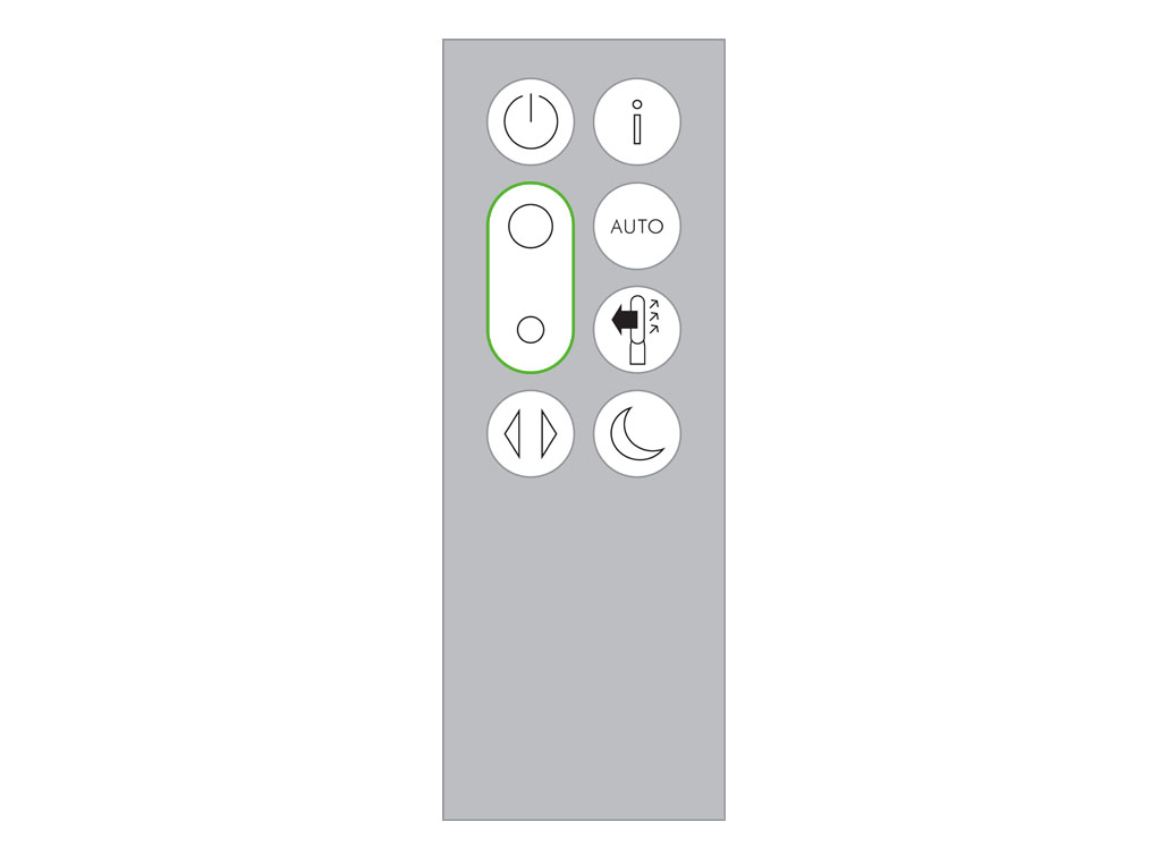
To restore normal function, perform a full system reset using both the remote and the fan unit. This clears temporary glitches in connectivity and reboots the internal control module.
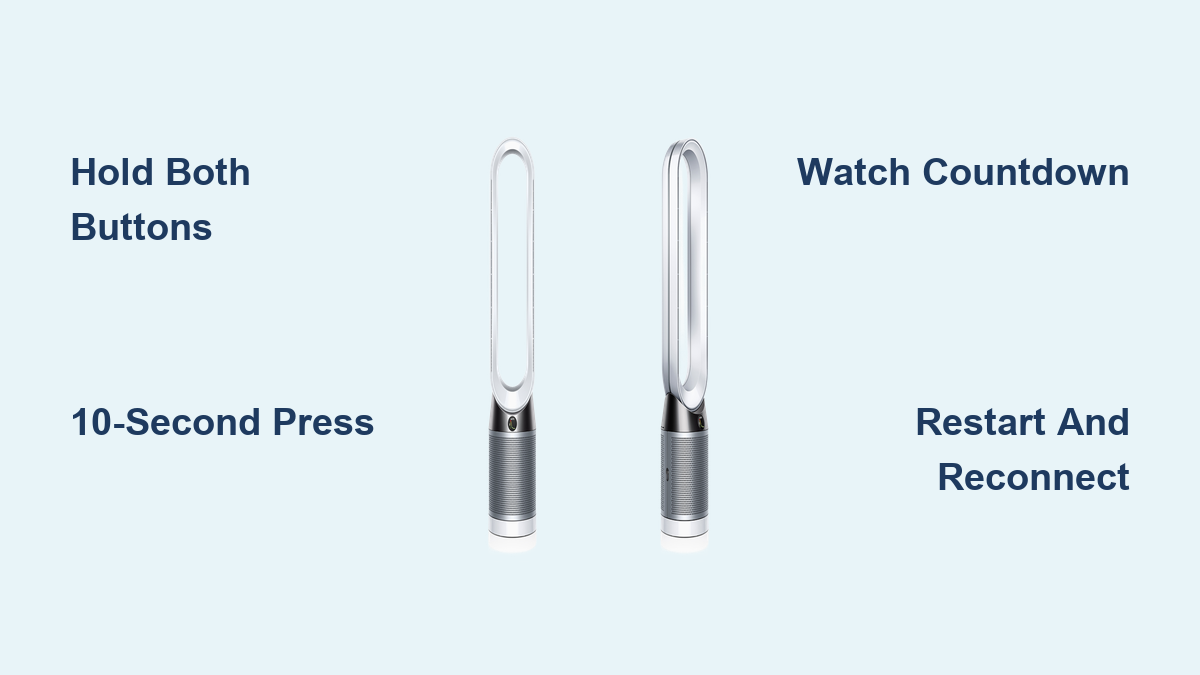
Press Remote and Fan Buttons Simultaneously
Locate the power button on your remote control and the power button on the fan unit. Press and hold both buttons at the same time using your thumbs or fingers. This dual-button command signals the fan to initiate a system reset, not just a power cycle.
Timing is critical. Hold both buttons for exactly 10 seconds. Releasing too early won’t trigger the reset. Holding longer isn’t harmful but unnecessary.
Watch the Display Countdown
Keep both buttons pressed for a full 10 seconds. During this time, the fan’s display will show a visual countdown, usually flashing numbers from 10 down to 1. This confirms the reset is active.
If you don’t see a countdown, repeat the process. Ensure both buttons are fully depressed and try again. Poor contact or a low remote battery can prevent the signal from registering.
Wait for Automatic Restart
After 10 seconds, the fan will automatically power off. Within a few seconds, it will restart on its own. This reboot indicates the reset is complete.
You may notice the fan defaults to speed 10 after restarting. This is normal and doesn’t indicate an error. Adjust the speed using the remote or app once reconnected.
Reconnect After Resetting Dyson Tower Fan
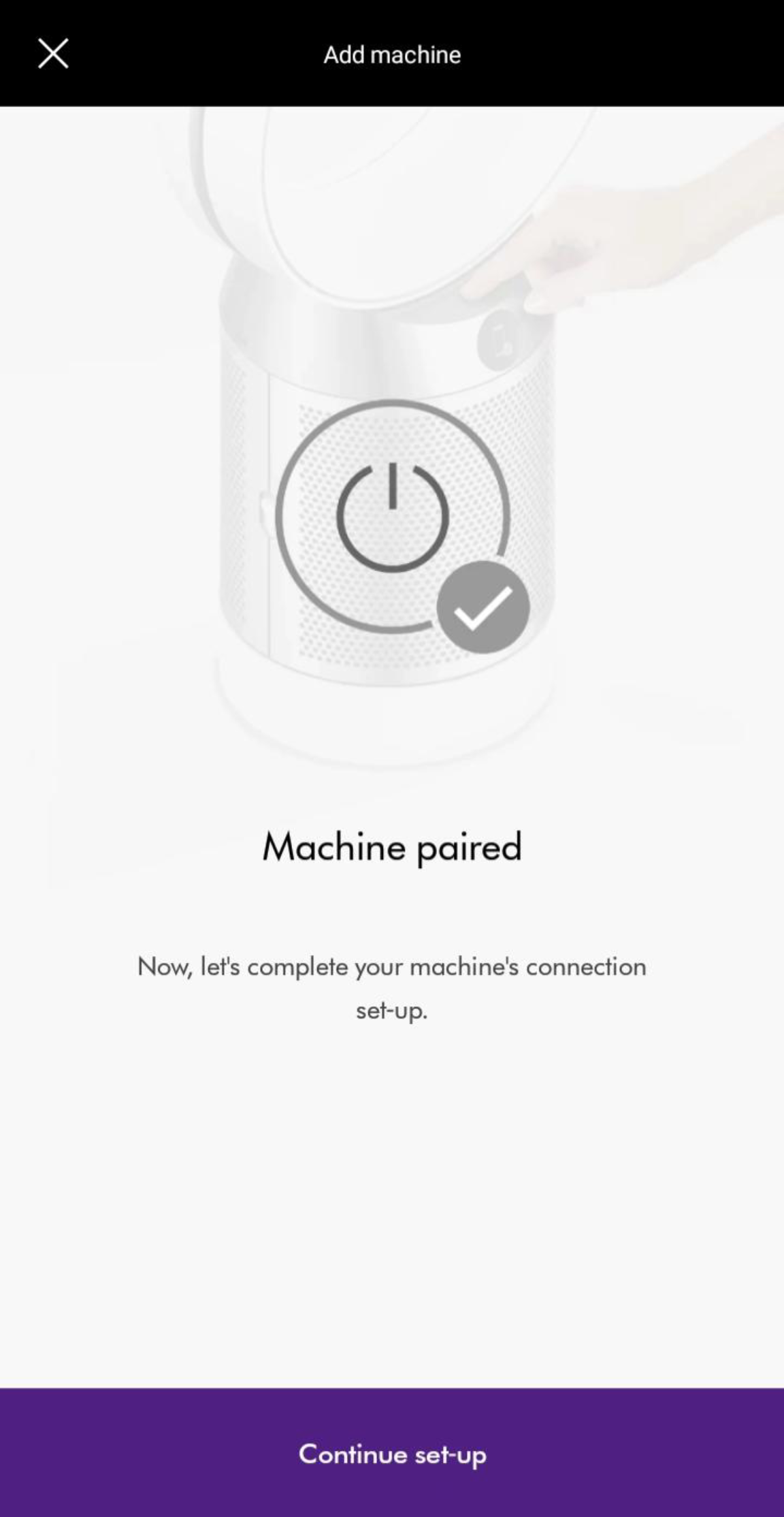
Once the fan resets, it may lose saved Wi-Fi or app settings. Reconnecting ensures full functionality, including scheduling, air quality monitoring, and remote control.
Pair with Dyson Link App
Open the Dyson Link app on your smartphone. If the fan doesn’t appear as connected, tap “Add Device” and follow the prompts to rediscover your TP04.
Make sure your phone is on the same Wi-Fi network as the fan. The app will guide you through pairing via Bluetooth and Wi-Fi setup if needed.
Resync the Remote Control
After reset, the remote may need to re-sync. Point the remote directly at the fan and press any button to re-establish the signal.
If the fan doesn’t respond, replace the remote’s battery first. A weak battery can prevent successful communication even after a reset.
Fix Common Reset Problems

Sometimes the reset doesn’t take. Before contacting support, rule out simple causes that block the process.
Display Shows No Countdown?
If the screen doesn’t show a countdown when holding the buttons, check the power connection first. Ensure the fan is plugged in and receiving power.
Verify button alignment. Press the center of both power buttons firmly. Replace the CR2032 remote battery if low.
Try the reset again with a fresh remote battery. A weak signal from the remote can prevent the command from syncing with the fan unit.
Fan Stays Off After Reset?
If the unit stays off after 10 seconds, check the outlet with another device to confirm power is available.
Unplug the fan for 30 seconds, then plug it back in. Try the reset process again from the beginning.
A hard power cycle often resolves boot issues that prevent restart.
Keep Your Dyson Fan Working Properly
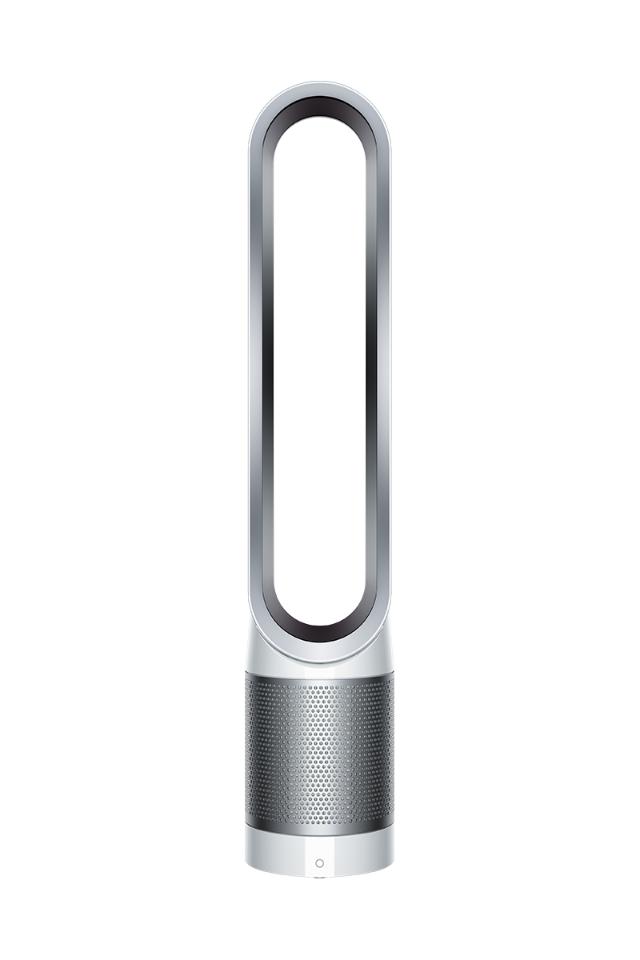
Maintain your Dyson tower fan’s responsiveness by following these simple habits.
Update Firmware Through the App
The Dyson Link app notifies you when a firmware update is available. Always install updates because they often include bug fixes for connectivity and performance.
Firmware updates can prevent the need for future resets by patching known software glitches.
Replace Remote Battery Regularly
Replace the remote’s CR2032 battery every 6 to 12 months, even if it still works. Aging batteries deliver inconsistent voltage, leading to communication errors.
A blinking LED on the remote when pressing buttons indicates low power.
Maintain Stable Wi-Fi Connection
Too many smart devices on one network can interfere with your fan’s connection. Use a 2.4 GHz Wi-Fi band, not 5 GHz.
Place your router within range of the fan. Limit connected devices during heavy usage to ensure stable communication between the app and your fan.
Does This Work on Other Dyson Models?
While this guide focuses on the TP04, similar reset methods apply to other Dyson tower fans but with slight differences.
TP02 and TP03 Models
The TP02 and TP03 models also support the dual-button reset. However, they lack a digital display, so you won’t see a countdown.
Instead, listen for a confirmation tone after 10 seconds. The fan will power off and restart, just like the TP04.
Pure Cool Models
Some newer Pure Cool models like the TP09 auto-reboot during connectivity issues. Still, a manual reset can help if the fan freezes or disconnects frequently.
Always refer to your model’s manual, but the 10-second dual-button rule is widely effective across Dyson’s tower fan lineup.
When to Contact Dyson Support
If the reset fails after multiple attempts and reconnection steps, the issue may be hardware-related.
Signs You Need Professional Repair
Fan won’t power on at all, the display remains blank after plugging in, or the reset process never triggers even with a new remote battery.
In these cases, contact Dyson customer support or use the app to request service. Your fan may be under warranty.
Frequently Asked Questions About Resetting Dyson Tower Fan
How do I reset my Dyson tower fan to fix app connectivity issues?
Press and hold both the power button on the remote and the power button on the fan unit simultaneously for 10 seconds. The display will show a countdown, and the fan will restart automatically.
Why won’t my Dyson fan reset even after holding the buttons?
Check that the fan is plugged in and receiving power. Replace the remote’s CR2032 battery with a fresh one. Ensure you’re pressing both buttons firmly at the center.
Will resetting my Dyson tower fan delete my settings?
The reset clears temporary glitches but doesn’t permanently delete your saved settings. You may need to re-pair the fan with the Dyson Link app and resync the remote.
How often should I reset my Dyson tower fan?
Only reset when experiencing connectivity issues, remote unresponsiveness, or app connection problems. Frequent resets aren’t necessary for normal operation.
What if my Dyson fan won’t turn on after resetting?
Unplug the fan for 30 seconds, then plug it back in. Try the reset process again. If it still won’t turn on, check the outlet or contact Dyson support.
Final Thoughts on Resetting Your Dyson Tower Fan
Resetting your Dyson tower fan is the most effective first step for fixing app connectivity, remote control failure, and unresponsiveness. By pressing both power buttons for 10 seconds, you clear system errors and restore normal operation. After resetting, re-pair the fan in the Dyson Link app and ensure the remote has a strong battery. For ongoing reliability, update firmware regularly and maintain a stable Wi-Fi connection. If problems persist after trying these steps, seek support from Dyson, but most issues resolve with this simple fix.